
ELRS Resource Guide
Introduction
The Early Learning Reporting System (ELRS) is the online platform where all WV Universal Pre-K program and child assessment data and Kindergarten, First Grade and Second Grade child assessment data is maintained. The ELRS Resource Guide is a manual designed to help various users with application of the ELRS. Program data includes school and classroom data, annual WV Universal Pre-K Health and Safety Checklist results, and county collaborative early childhood core team member information. Child assessment data include child assessment checkpoints and Child Outcomes Summary (COS) for Pre-K special education reporting requirements. Through data input, the ELRS provides output reports for individual child support and instruction, classroom, school, and program continuous quality improvement planning.
Pre-K Roles
- District Pre-K Coordinator
- Pre-K coordinator and district early childhood specialists.
- Itinerant Services Provider
- Individuals who provide a service to children, but are not assigned to their own physical classroom.
- Pre-K Lead Teacher
- The Pre-K teacher of record.
- Pre-K Assistant Teacher
- Early Childhood Classroom Assistant Teacher (ECCAT) of record.
- Special Education Representative
- District special education director, liaison, or designee. This is not for itinerant services providers.
- Site Manager
- The childcare center director.
- Head Start Representative
- Head Start Grantee staff (e.g., director, education specialist, site manager).
Registration
Pre-K

From the ELRS home page (https://webtop.k12.wv.us/0/apps/elrs/), hover over "Instructions" and click on the "Registration" menu item for guidance, which provides instructions for getting an SSO account and registering for the ELRS.
If this menu option is not visible, the user may already be logged in to a current SSO session. Please log out by visiting https://webtop.k12.wv.us/0/apps/profile/ and click the "Log Out" link.
To register, hover over Registration at the top of the page and then click on the appropriate role. Please carefully read all instructions to complete the registration process. All required fields are labeled in red.
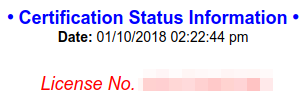
Pre-K lead and assistant teachers need to know their WVDE Certification License number. All WVDE certifications, permits, and authorizations have this number. Users can find this number at https://wveis.k12.wv.us/certcheck/. It is 12 alphanumeric characters in red lettering.
To finalize the registration process, click on the "Apply for Account" tab at the bottom of the page. A registration notification screen will be provided with the information entered. The notification screen will also prompt users to check their e-mail as well as their junk/spam/clutter folder. Once confirmation is received, please click on the link in the message to confirm the e-mail address. Registration will not proceed until the user confirms the e-mail. Confirm by following the instructions in the e-mail.
Once users have completed registration and confirmed their e-mail address, the application will go through an approval process to confirm the information submitted is accurate. Users may check the application status by hovering over Registration, then click Check Status.
If users do not already have an SSO account and a @k12.wv.us e-mail address, a second e-mail will follow with information on how to access SSO. Users should carefully follow the directions in the e-mail to finalize the SSO account creation.
If users encounter any difficulties during this process, please e-mail elrs@help.k12.wv.us with a detailed description of the issue.
Upon application approval, an email detailing the Early Learning Reporting System account and login information will be sent to the applicant.
Kindergarten
Registration is not required for Kindergarten teachers. Kindergarten teachers not able to log in to the ELRS should ensure the "Kindergarten Teacher" role in SSO has been identified or assigned. This role is automatically generated nightly based on scheduling information in WVEIS. A teacher must be assigned Kindergarten students (WVEIS file PSCH410) in a valid Kindergarten course (e.g., 2620, 3000, 4000, 6000, 7000) that are tied to the user (WVEIS file PSCH320L) for the current school year and term (WVEIS file PSCH210).
The homeroom course code (7805) is not a valid Kindergarten course code. This includes the fifth or sixth character containing a "K" for Kindergarten.
First Grade
Registration is not required for First Grade teachers. First Grade teachers not able to log in to the ELRS should ensure the "First Grade Teacher" role in SSO has been identified or assigned. This role is automatically generated nightly based on scheduling information in WVEIS. A teacher must be assigned First Grade students (WVEIS file PSCH410) in a valid First Grade course (e.g., 3001, 4001, 6001, 7001) that are tied to the user (WVEIS file PSCH320L) for the current school year and term (WVEIS file PSCH210).
The homeroom course code (7805) is not a valid First Grade course code. This includes if the fifth or sixth character contains a "1" for First Grade.
Second Grade
Registration is not required for Second Grade teachers. Second Grade teachers not able to log in to the ELRS should ensure the "Second Grade Teacher" role in SSO has been identified or assigned. This role is automatically generated nightly based on scheduling information in WVEIS. A teacher must be assigned Second Grade students (WVEIS file PSCH410) in a valid Second Grade course (e.g., 3002, 4002, 6002, 7002) that are tied to the user (WVEIS file PSCH320L) for the current school year and term (WVEIS file PSCH210).
The homeroom course code (7805) is not a valid Second Grade course code. This includes if the fifth or sixth character contains a "2" for Second Grade.
Principals & Assistant Principals
Registration is not required for principals. If a principal cannot log in to the ELRS, then the applicable role in SSO must be identified or assigned.
This role is automatically generated nightly based on scheduling information in WVEIS. The principal must be assigned to the principal course code (8037) for the current school year and term.
Early Learning District Specialist/Coordinator
Registration is not required for Early Learning District Specialists and Coordinators. This is currently assigned via a manual process for staff overseeing Kindergarten data entries for their district. If an Early Learning District Specialist/Coordinator needs this role, then please email the ELRS help desk at elrs@help.k12.wv.us.
Log In
When assigned a role that gives access to the ELRS, please go to https://webtop.k12.wv.us/0/apps/elrs/ to log in to the ELRS.
If the roles were recently modified to grant you access to the ELRS, please refresh permissions by logging out of the SSO session. Please log out by visiting https://webtop.k12.wv.us/0/apps/profile/ and clicking the "Log Out" link. Afterward, please go to https://webtop.k12.wv.us/0/apps/elrs/ and log in again.
Menus
- Home
- The starting or landing page of the ELRS. Users can view assessment window dates and news updates.
- District
- Classroom data is located within the district tab. Pre-K Coordinators manage classroom information and verify program data.
- Pre-K Users
- List of all registrants in the ELRS: Pre-K system. This includes registrants who are pending approval and approved registrants and roles in the system.
- Progress
- District staff may view students still unassigned in STU.380, as well as assessment progress completion on the ELRS.
- Assessment
- Use this menu to view the ELRS templates.
- Outcome Data
- Users may view aggregated data by head start grantee, district, location, and classroom.
- Observations
- Use this menu to view Pre-K Health and Safety Checklists by school year or create new reports.
- Audit
- Pre-K district staff may view Child Outcome Summary records entered by classroom teachers for children with active IEPs. Additionally, Pre-K lead and assistant teacher certification information can be viewed.
- Health
- WVEIS health data can be viewed at the district and state levels.
- Help
- Use this menu to access instructions for observations (WV Universal Health and Safety Checklists, Microsoft 365, and SSO) and WVEIS scheduling guidance.
District
The menu allows district staff to view, update, and verify program data for each WV Universal Pre-K classroom.
Manage Sites
District staff may update the district, site, and classroom program data verification is completed annually by October 15th. Specific directions for program data verification can be accessed in the ELRS under the help tab.
Classrooms cannot be added or removed in the ELRS at the county level. An addendum must be completed and submitted to the WV Universal Pre-K Steering Team to add or remove a classroom. Further information on the addendum process can be reviewed in the WV Universal Pre-K Guidebook at https://wvde.us/early-and-elementary-learning/wv-universal-pre-k/collaborative-team-resources/. It is important to keep the site information updated. The information is used for the Find My Pre-K app found at https://webtop.k12.wv.us/0/apps/find-my-pre-k/. If the Google Maps view is incorrect, correct the location marker through the site information page.
Site Verification
The Pre-K program data for the selected district found on the Manage Sites page and county collaborative early childhood team members can be verified by the Pre-K District Coordinator as required by Policy 2525.
Pre-K Users Management
The menu allows district staff to approve user registrations and view users.
Pending Approval
District users' registration status can be reviewed and approved. When a user's email address is confirmed, the registration can be reviewed by the district staff. Upon approval by the district staff, a review by the Office of Early and Elementary Learning will take place.
Barring certain exceptions, the Office of Early and Elementary Learning will not approve a registration if a teacher's certification license is missing, expired, or does not have the proper endorsements for their role.
During the registration review, the reviewer may approve, reject, or deny a registration. An approval will send the registration to the next reviewer. A rejection will send the registration back to the applicant for corrections to be made. A denial will permanently remove the registration from the approval process; this is usually done when a registration has been created by mistake.
View
District staff may view all the users assigned to their location and primary role.
Head Start staff users may be classified in the district of the head start's main office
Assessment
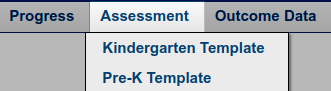
The Assessment menu allows teachers access to student lists for assessment reporting. This tab also gives access to blank templates.
Templates
Blank ELRS Pre-K and Kindergarten data entry templates may be viewed.
Pre-K Data Entry

Teachers are able to view classroom rosters, enter data, and generate reports for each student.
The red "Do Not Assess" button shows that the teacher has chosen the Do Not Assess option for this child. This option should only be used for a child that has been in the program for less than 2 weeks of the closing of the current reporting window.
Based on observations and using the formative assessment process, teachers make an informed decision about a child's developmental progression.
Child Outcomes Summary
Child Outcomes Summary (COS) is the summary form completed for children determined eligible for special education services. This must be completed three times per year in conjunction with the ELRS reporting window. This is used for federal special education compliance.
If a child is enrolled in a Universal Pre-K classroom, the classroom teacher will complete the ELRS and COS in conjunction with all service providers. If a child is not enrolled in a Universal Pre-K classroom (i.e., walk-in speech only), the itinerant service provider is responsible for COS completion. If the child is not in a WV Universal Pre-K classroom, the itinerant service provider is to go into the ELRS and select the "Do Not Assess" box at the top and then proceed to the COS. The COS MUST be completed in its entirety. If a child was recently made eligible, use the information gathered through the eligibility process to complete the COS Entry record.
A child may only have one COS Entry record. If "Entry" is not an option in the drop-down menu, the child may have an existing COS Entry record.
- Types
- There are five options for the type of COS record.
- Entry
- The very first entry when a child is made eligible for special education. A child may have one entry COS only.
- Ongoing
- All COS records after the Entry but prior to exiting special education or Pre-K.
- Exit: Child Transitioned to Kindergarten or Exited the Pre-K Program
- Child is leaving Pre-K to go kindergarten. (the child may continue to be eligible for special education services.)
- Early Exit: Not Completed Due to Inability to Locate Family
- All efforts have been made to locate a family have been unsuccessful.
- Early Exit: Not Completed, Initial IEP Completed Less Than 6 Months Ago
- A child was made eligible for special education less than 6 months ago and is now going to kindergarten.
Questions
There are two COS questions.
- To what extent does this child show age-appropriate functioning, across a variety of settings and situations, on this outcome? (Rating: 1–7)
- Has the child shown any new skills or behaviors related to [this outcome] since the last outcomes summary? (Yes/No)
Answer Options
- Not yet. The child uses no immediate foundational skills across settings and situations — has mostly foundational skills similar to a much younger child.
- Not yet. The child occasionally uses immediate foundational skills across settings and situations.
- Nearly. The child uses immediate foundational skills most of the time across settings and situations — not yet age expected.
- Nearly. The child occasionally uses age expected behaviors and skills across settings and situations.
- Somewhat. The child uses a mix of age-expected and not age-expected behaviors and skills across settings and situations.
- Somewhat. The child uses age expected behaviors and skills, but there are still some significant concerns.
- Completely. The child uses age expected behaviors and skills in all or almost all everyday situations.
Child Accomplishments Summary
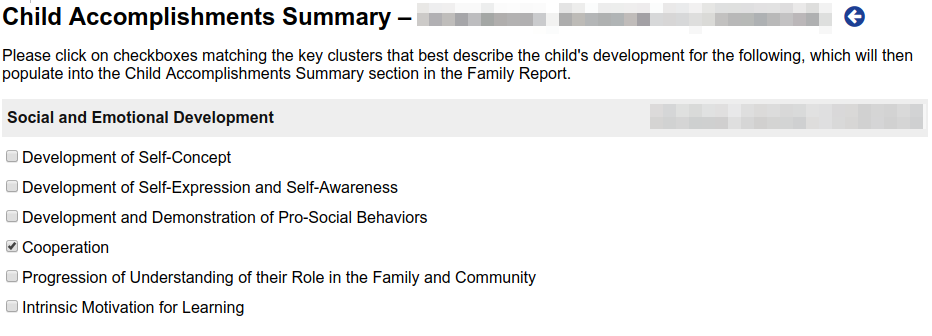
The Child Accomplishment Summary allows the teacher to select checkboxes matching the key clusters that best describe the child's development in that area.
This will populate into the Child Accomplishment Summary section in the Family Report.
Next Steps
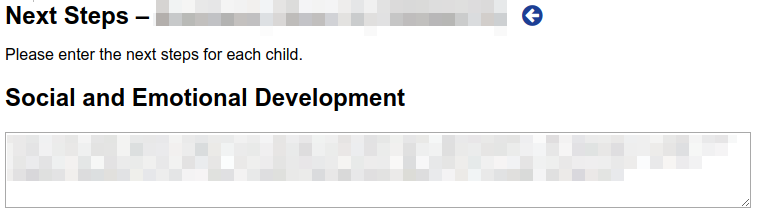
The Next Steps page allows a user to enter a narrative from the teacher regarding the indicators the child will be working toward after the current reporting period. This narrative will appear in the Family Report.
Family Report
The Family Report displays the current status of the student. This report is used to set goals and next steps with family input.
Kindergarten Transition Report
The Transition report is completed by the Pre-K teacher and follows the child to the next school year. This report should be used by the Pre-K teacher to transition the child to the Kindergarten teacher in the spring prior to the start of Kindergarten.
This narrative is used by the kindergarten teacher for instructional purposes and needs to provide adequate information regarding the child's progress and areas of need. Please do not refer to other reports in this section, as the receiving teacher may not have access to all documentation.
Kindergarten, First Grade, Second Grade Data Entry
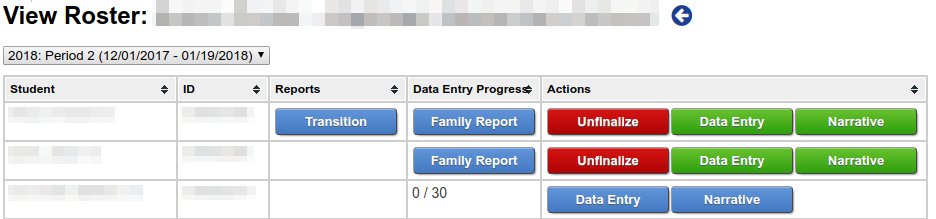
Teachers are able to view their classroom rosters, enter data, and generate reports for each student. The red "Do Not Assess" button shows that the teacher has chosen the Do Not Assess option for this child. This option should only be used for a child that has been in the program for less than 2 weeks.
Narrative Entry
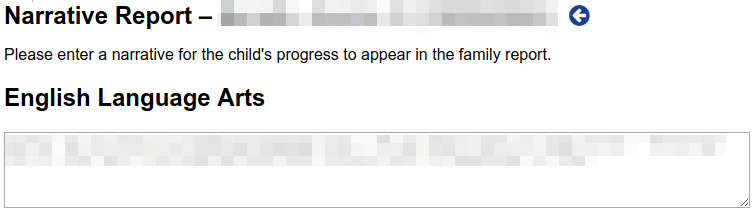
The Narrative Entry page allows the teacher to communicate directly to the family via the Family Report.
This narrative will appear in the Family Report.
Family Report
The Family Report displays the current status of the student. This report is used to set goals and next steps with family input.
Transition Report
The Transition report is completed by the Pre-K teacher and follows the child to the next school year. This report should be used by the Kindergarten teacher to receive insight on the child's growth during the previous school year.
Progress Completion
The progress completion page gives an overview of the assessment progress being made by each teacher in the district.
The progress completion is updated nightly, and therefore, if a teacher completes assessments during the day, the progress will not be reflected until the next day.
Pre-K
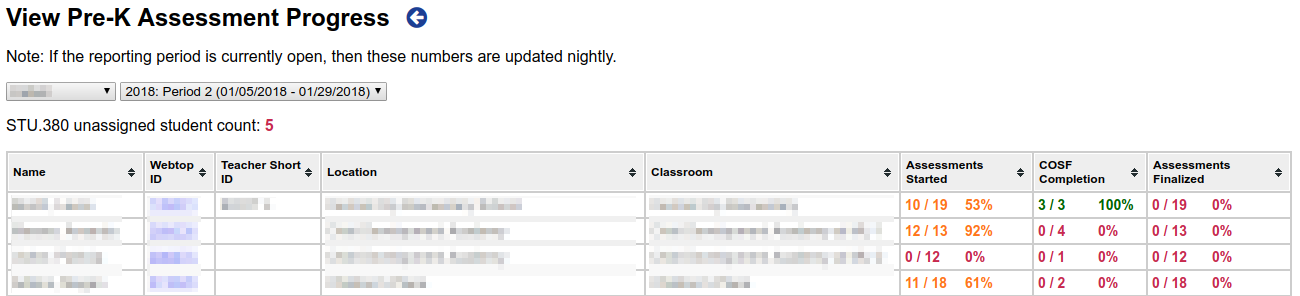
The Pre-K progress completion lists the assessments started, COS completion, and the number of assessments that have been marked as finalized. By clicking on the SSO ID, the administrative staff can dive into a classroom's assessment page to see the lead teacher's screen.
An error may be displayed if the progress completion could not be calculated for a teacher. It also indicates that the teacher cannot access the classroom to assess students. This can be caused by the following conditions:
- No students assigned to short teacher ID or off-site classroom in STU.380
- On-site lead teacher has multiple short teacher IDs in PSTU240, and the incorrect one is being used in STU.380
- An off-site classroom does not have a valid WVS.216 ID
- An off-site classroom is marked as being an on-site classroom
Kindergarten, First Grade, Second Grade
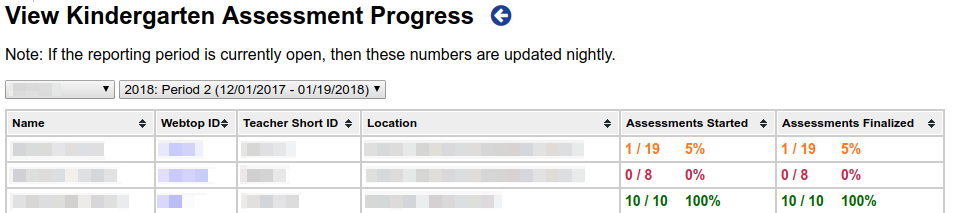
The progress completion lists the assessments started and the number of assessments that have been marked as finalized. By clicking on the SSO ID, the administrative staff can dive into a classroom's assessment page to see the teacher's screen.
An error may be displayed if the progress completion could not be calculated for a teacher. It also indicates that the teacher cannot access their classroom to assess their students. This can be caused by the following conditions:
- Students are not assigned to teacher's Kindergarten course.
- Students are only assigned to teacher's homeroom course.
- Teacher has multiple short teacher IDs in PSTU240, and the incorrect one is being used by ELRS.
- Teacher has multiple Kindergarten Teacher roles at different locations in SSO, and the incorrect one is being used by ELRS.
Outcome Data
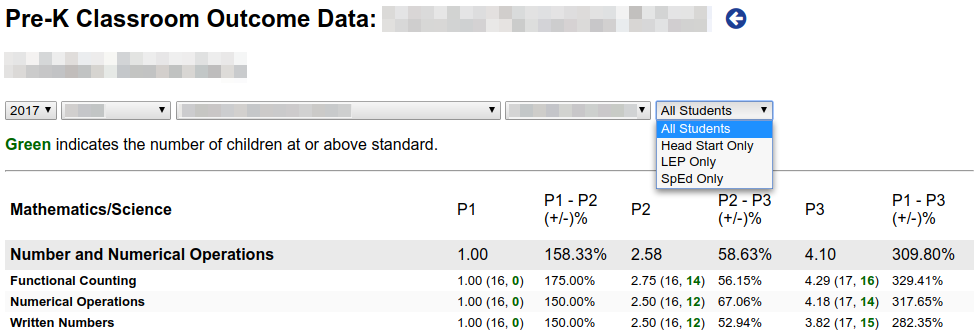
The outcome data menu provides a variety of reports based on the assessment entries for the districts, schools, and classrooms. It is broken out by each reporting window for a given school year.
Audit
COS District Overview
This page provides an overview of COS records for each student for the selected district.
COS Data Summary
View the COS entry and exit records by student ID for the students that exited during the selected school year.
Certification

View the certification information for Pre-K lead and assistant teachers.
Observations
The observations menu allows district staff to create and view classroom observation reports.
Help
Use the Help menu to access the "Instructions for Health and Safety" checklist and WVEIS scheduling options. Additionally, there are links to files pertaining to enrolling and scheduling Early Childhood students, course codes, and teacher/service provider ID standards.
STU.380
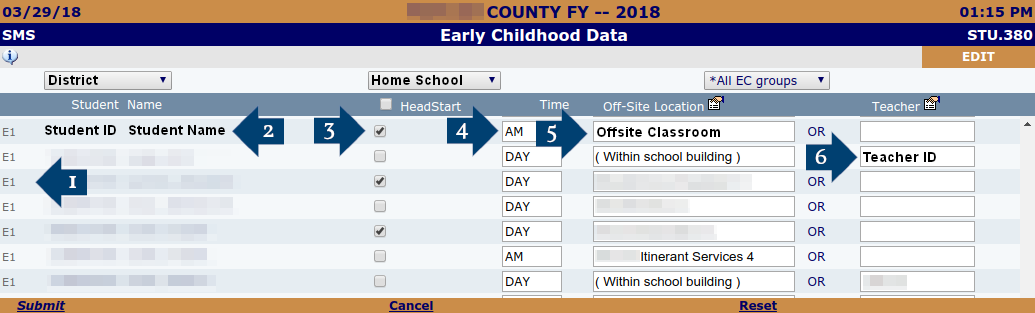
All children enrolled in Universal Pre-K or receiving special education itinerant services outside the classroom must be entered in STU.380 in addition to being enrolled and scheduled in WVEIS.
Once enrolled and scheduled in WVEIS, the home school will pull children's names from STU.301 into STU.380. County Coordinators or their designee must then enter required information into STU.380.
If a child is not showing up on STU.380, they are not properly enrolled and/or scheduled in WVEIS. Please view the guidance under the Help menu for scheduling Pre-K children.
- E1 will show for all children enrolled full time.
- The Student ID and Student Name will be populated by information entered in WVEIS 216.
- Click the Head Start box for all children receiving Head Start services.
- Time
- DAY — child attend classroom full time
- AM — child attends classroom in the morning only
- PM — child attends classroom in the afternoon only
- Off-Site Location
- Within the school building — a child attends a class housed within a public school building. If this option is chosen, you must enter the Teacher ID in the next column (6).
- Off-site Classroom - child attends a class housed outside a public school building. For instance, Head Start building or Child Care Center. Do not enter the teacher ID in the next column.
Frequently Asked Questions
Why is the Family Report button not appearing?
For the Family Report button to appear, all forms (e.g., child accomplishments summary, narrative et al.) must be completed for each student's entry and the entry must be finalized.
While approving Pre-K teachers, I cannot select the appropriate classroom. Why?
Here are some possibilities:
- The former teachers of the classroom must be removed. A classroom can only have one lead teacher and two assistant teachers
- The user registration does not match the classroom type (i.e., a lead teacher cannot be in an itinerant services provider classroom)
One of my Pre-K students is not appearing in the ELRS. What is causing this?
Here are some possibilities:
- The student is not in WVEIS
- The student does not have any enrollment information (PATT270) in WVEIS
- The student is not assigned or is assigned incorrectly in STU.380
One of my Kindergarten, First Grade or Second Grade students is not appearing in the ELRS. What is causing this?
Here are some possibilities:
- The student is not in WVEIS
- The student does not have any enrollment information (PATT270) in WVEIS
- You and your students are not scheduled in a valid Kindergarten course code
I'm an assistant teacher for Head Start. Should I register as a Head Start Representative?
No, Pre-K lead and assistant teachers should register as a teacher. The role is determined by the district coordinator's assignment and the certification data available during the approval process.
Can a teacher have more than one classroom?
No, a teacher must have one, and only one, classroom for the ELRS to work properly.
What's the difference between an on-site classroom and an off-site classroom?
An on-site classroom is defined as a classroom which physically resides on the home school's property (i.e., it is considered part of the school as a whole; it shares the same street address as the school). For on-site classrooms, the short teacher ID should be used to schedule students in STU.380.
An off-site classroom is defined as a classroom which does not physically reside on the home school's property. Some off-site classroom examples include but are not limited to:
- Classrooms at private schools
- Classrooms at head start centers
- Classrooms at day care centers
- Classrooms at career and technical centers (i.e., students are not scheduled directly at the tech center)
- Classrooms at facilities partnered with the LEA, but not located in the WVEIS Master List of Schools
- Itinerant services provider classrooms
- Classrooms at Schools for the Deaf and the Blind
The students are assigned in STU.380, but they are not appearing in the ELRS. What is causing this?
Here are some possibilities:
- Some teachers have multiple teacher IDs assigned in PSTU240 for their school, and the preferred teacher ID was not chosen. For example, if there are two teacher IDs for John Smith (e.g. "SMIT J" and "9SMI J"), the ID without the number (SMIT J) should be used
- Teacher IDs are being used for an off-site classroom
- Off-site locations are being used for an on-site classroom
- The student does not have any enrollment information in WVEIS
What is SSO?
The WVDE SSO is the West Virginia PK-12 Single Sign-On (SSO) platform developed and maintained in-house by the West Virginia Department of Education's Office of Education Information Systems. It provides an identity for faculty, staff, and students across the state of West Virginia. Furthermore, it simplifies user management across the state by providing one set of credentials for systems connected to SSO, including Microsoft 365.
What is Microsoft 365?
Microsoft 365 is an online productivity suite provided free of charge to all Early Learning Reporting System users via SSO. It also provides users with a @k12.wv.us email address. Additionally, users may download a free copy of Office Professional from the Microsoft 365 portal for use.
What is my SSO username and password?
Visit https://webtop.k12.wv.us/0/apps/profile/ to view username, active roles, and email addresses linked to the assigned SSO account. The username or one of the email addresses can be used to log in to the ELRS or any other SSO application.
How do I change my SSO password?
The password can be changed at https://webtop.k12.wv.us/0/apps/profile/.
How do I reset my SSO password?
Recover your account by going to https://webtop.k12.wv.us/password/ and using one of the email addresses that is tied to the assigned SSO account.